Tuji

Tuji / Screenshot tool for Mac

Capture. Annotate.
Beautify.

Tuji is a screenshot app for macOS. Grab your screen, point out what matters, then dress it up with a background, rounded corners and a shadow. Copy or save, and you are done.

Mac App StoreAuto-updates · App Store account
Direct downloadLicensed on tuji.app · .dmg

macOS 12.3 or later · Free to use · Pro is a one-time purchase

Three stepsOne window
01 / Capture

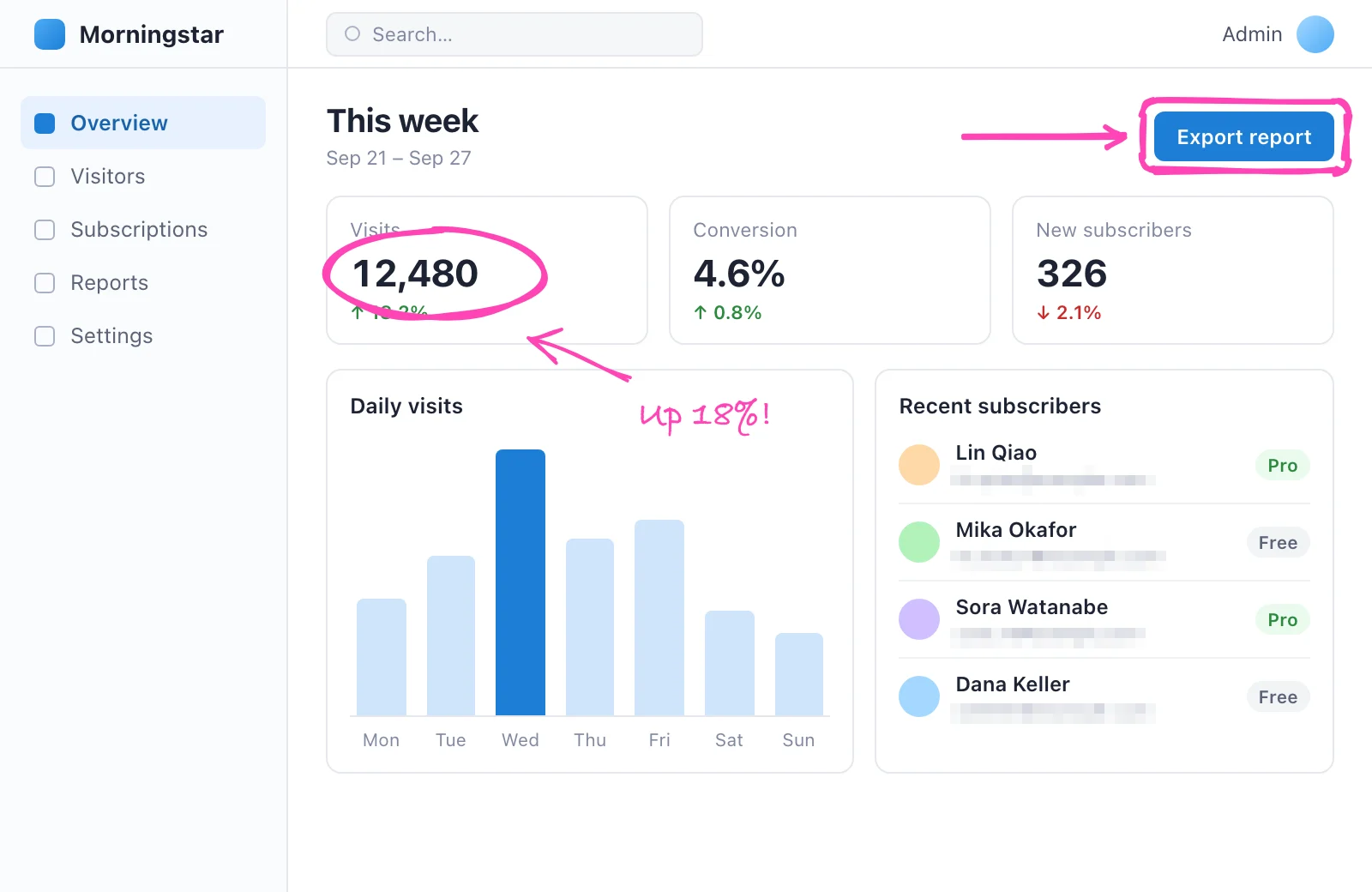
Grab a window, a region or the whole screen.

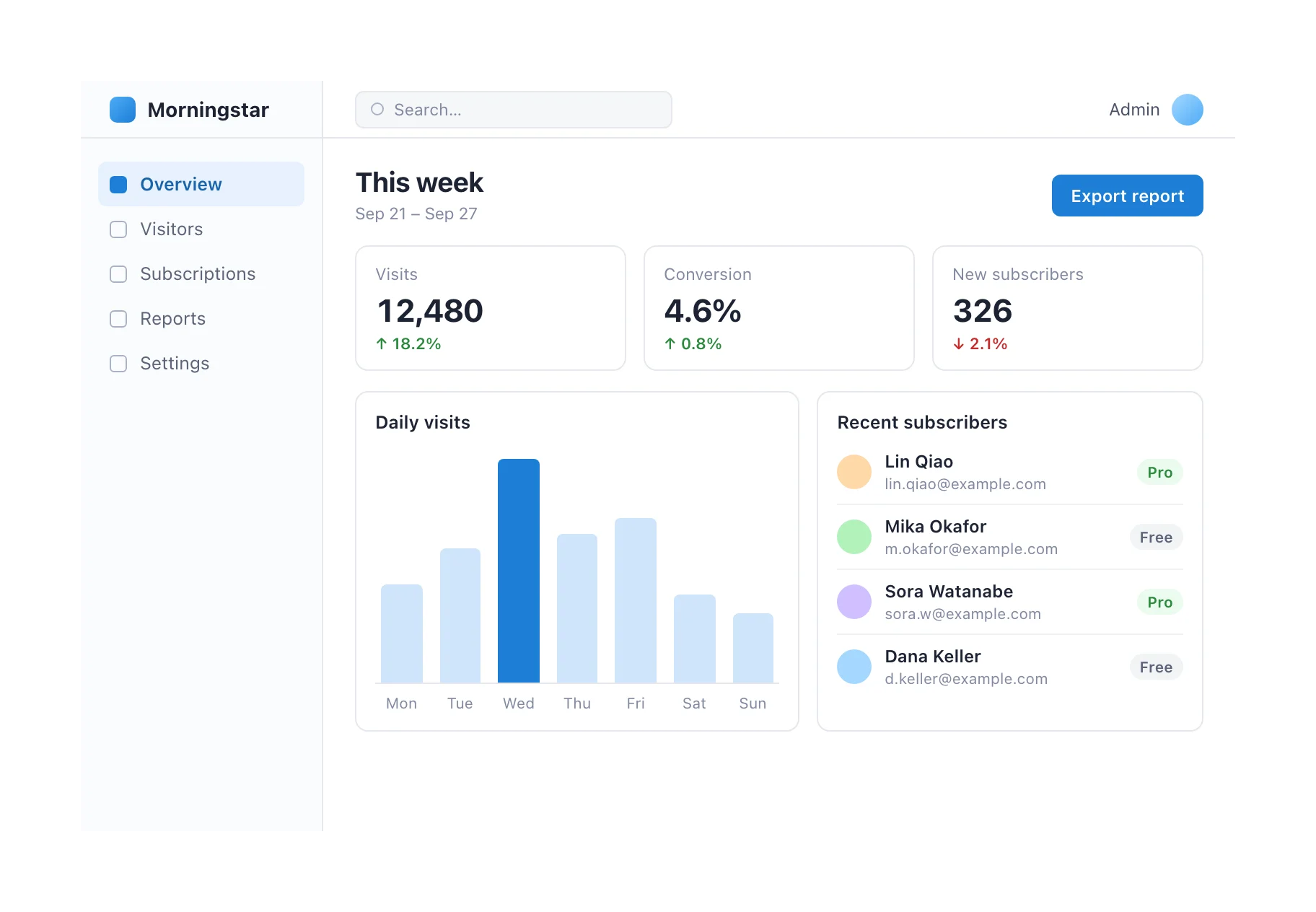
Capture: A plain capture, straight from the screen

A plain capture, straight from the screen

The editor

One window, from raw capture to share-ready.

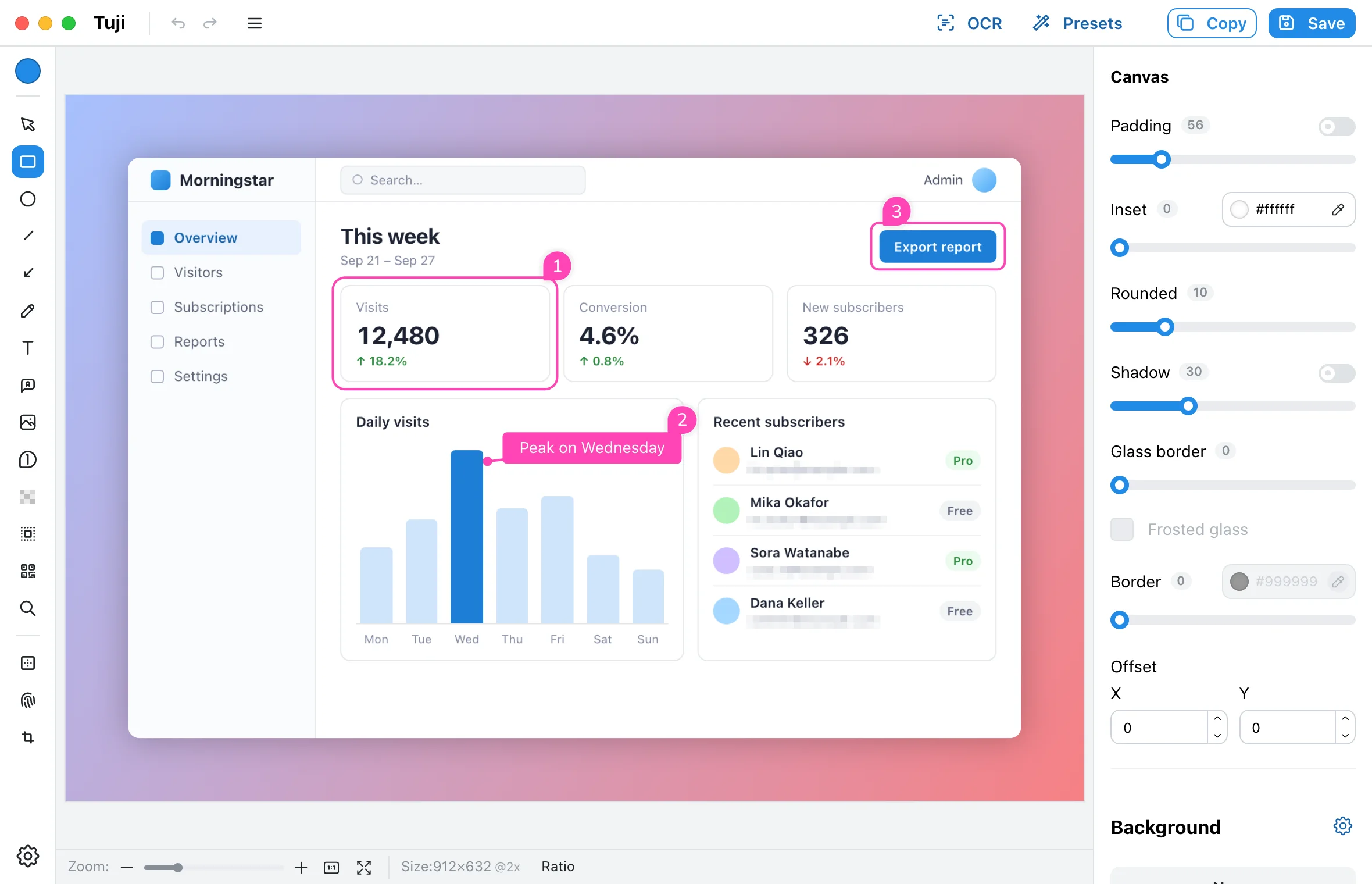
Tools on the left, canvas in the middle, every setting on the right. Nothing is buried in a menu.

The Tuji editor: annotation tools on the left, an annotated screenshot on a gradient background in the middle, canvas settings on the right

Features

Everything a screenshot needs.

01 / Capture

Capture exactly what you need.

The whole screen, a single window, or any region you drag. Or press one combined shortcut and decide after the fact.

  • Global shortcuts, all customizable
  • Recent regions are remembered for repeat captures
  • Optionally keep the cursor, or auto-crop window shadows
  • Open images from disk or the clipboard as well

Default shortcuts

Capture

All in one
⌃⇧1
Full screen
⌃⇧2
Window
⌃⇧3
Region
⌃⇧4

In the editor

Copy image
⇧⌘C
Save image
⌘S
Pin to top
⌘T
Duplicate annotation
⌘D

Every shortcut can be changed in Settings.

02 / Annotate

Show it instead of explaining it.

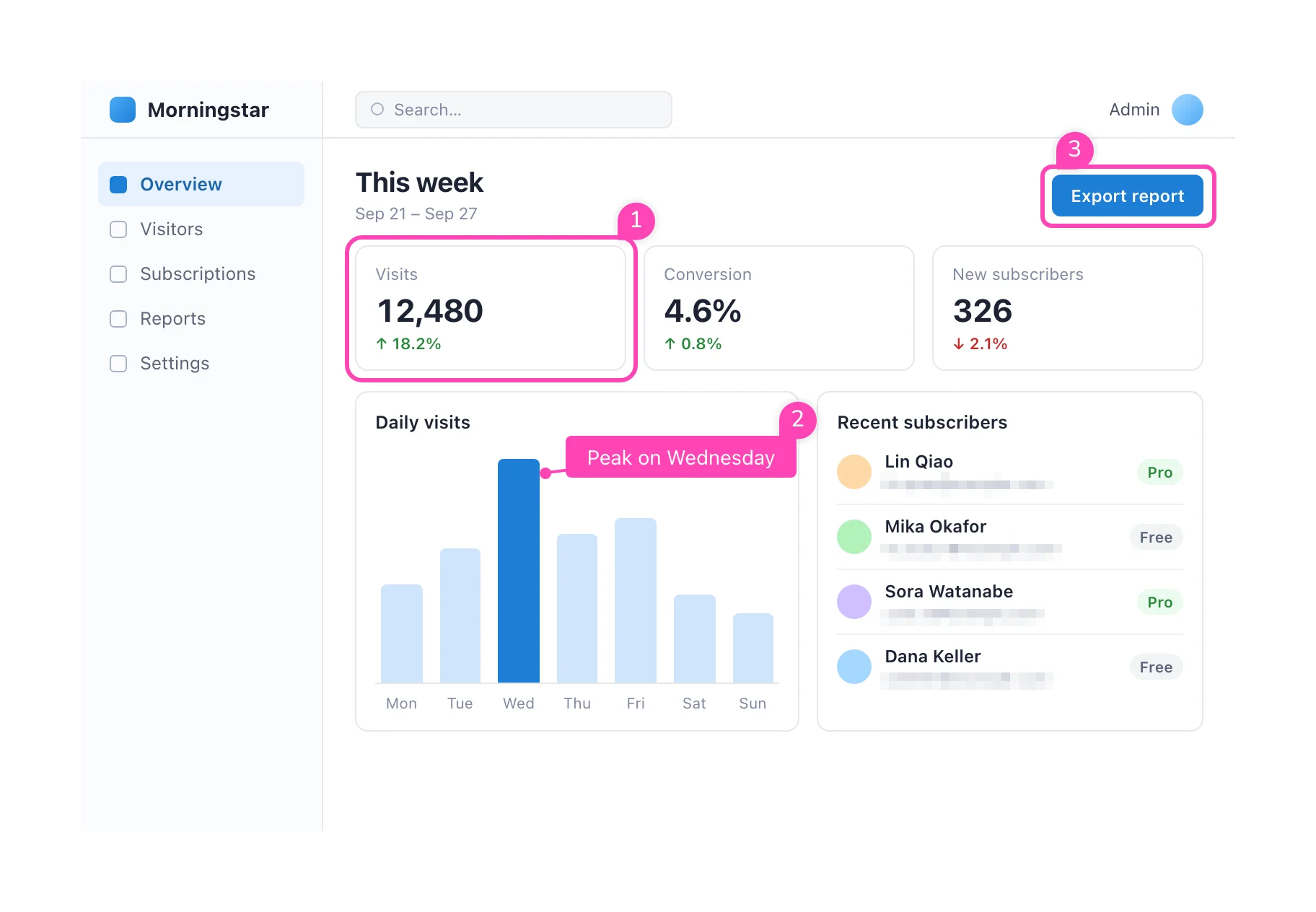
Thirteen tools, from arrows, shapes and text to callouts, counters, mosaic, spotlight and a magnifier. Each one is a single key away.

  • Classic and hand-drawn styles
  • Curved arrows with editable anchor points
  • Double-click any text to edit it in place
  • Save the current style as the default for a tool
Classic annotations: a rounded box, a callout, numbered counters and mosaic over email addresses

Tools and their keys

  • RRectangle
  • EEllipse
  • LLine
  • AArrow
  • PFreehand
  • TText
  • NCallout
  • IImage
  • CCounter
  • MMosaic
  • FSpotlight
  • QQR code
  • GMagnifier
  • KCrop

03 / Beautify

Make it look finished.

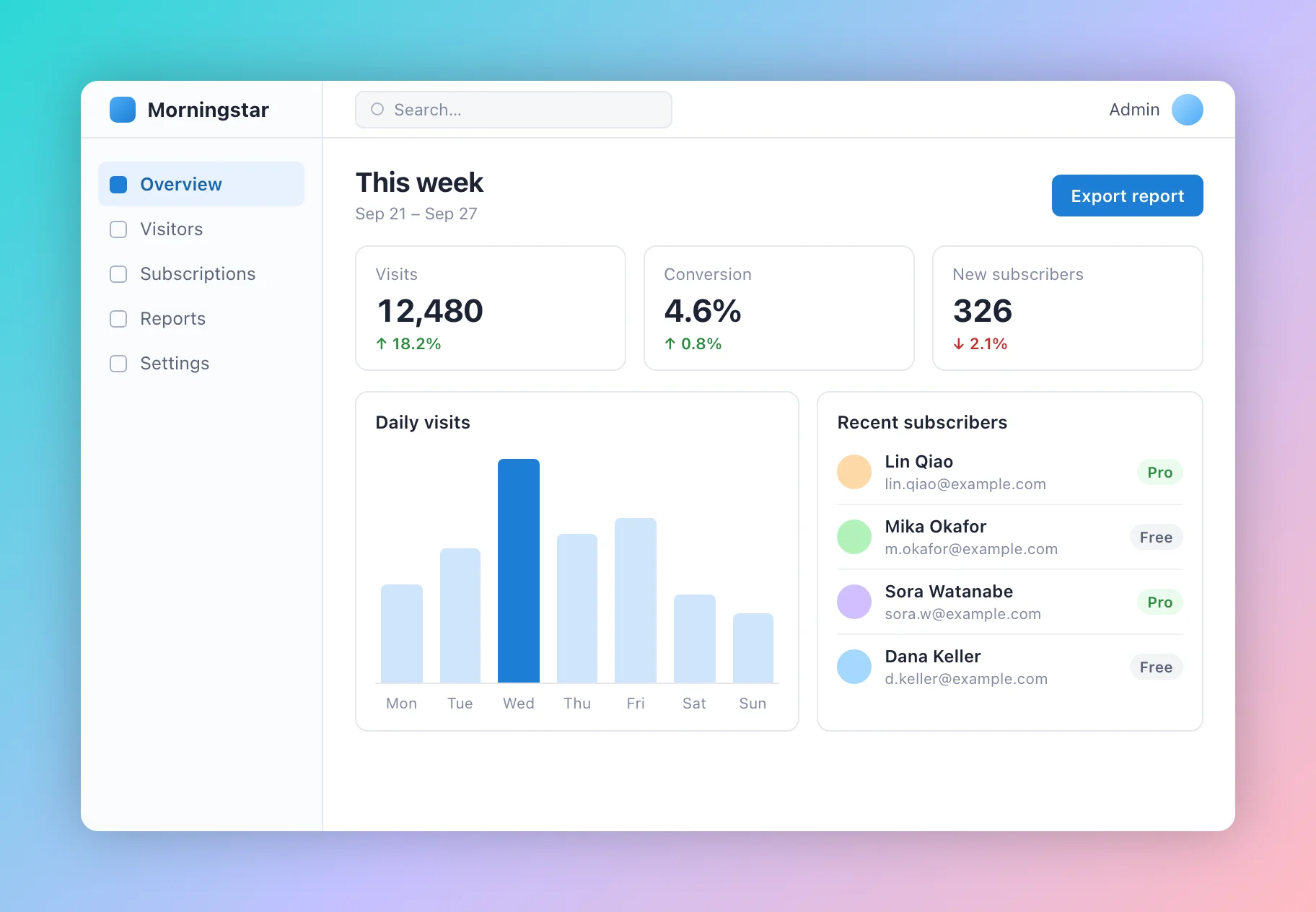
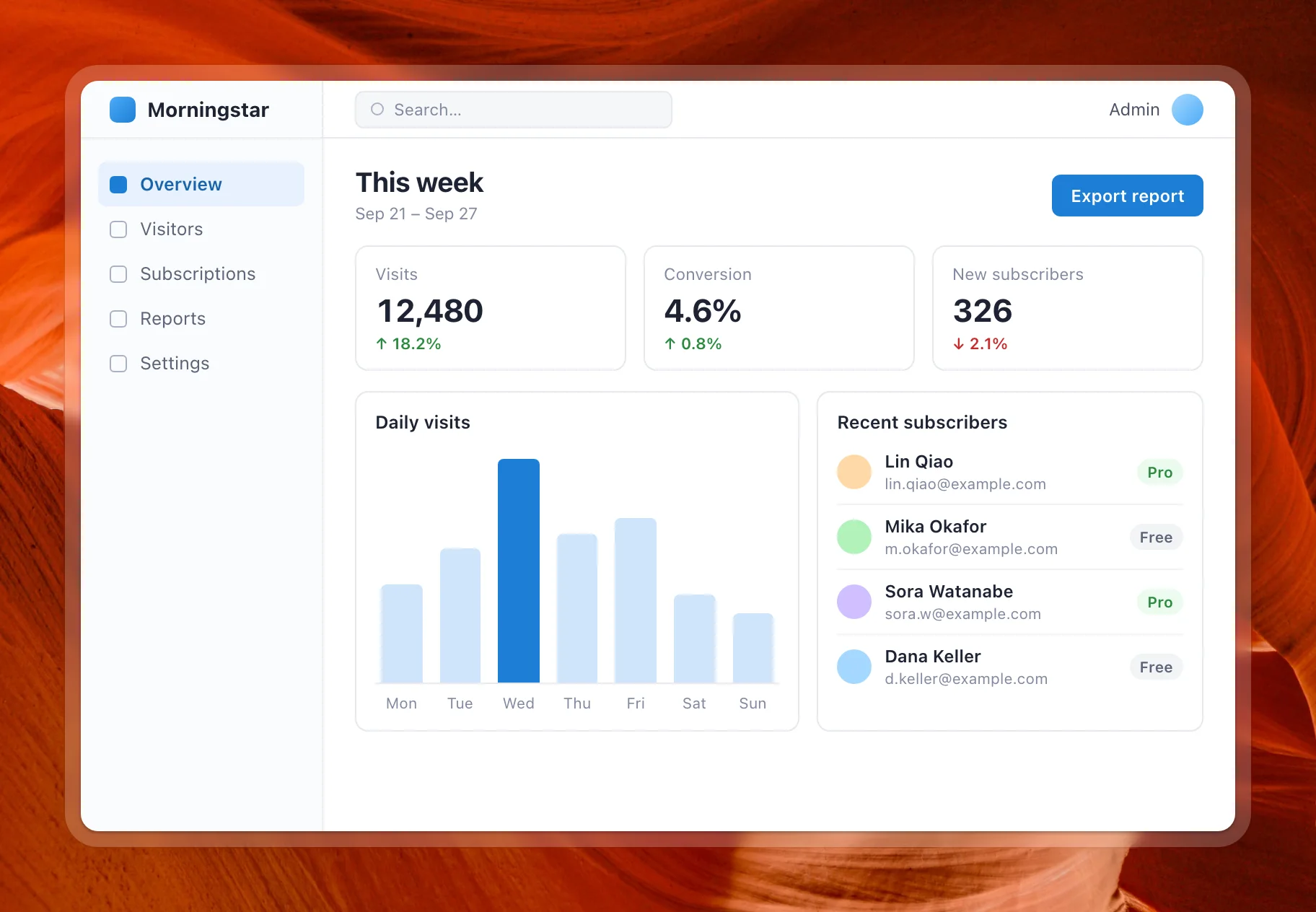
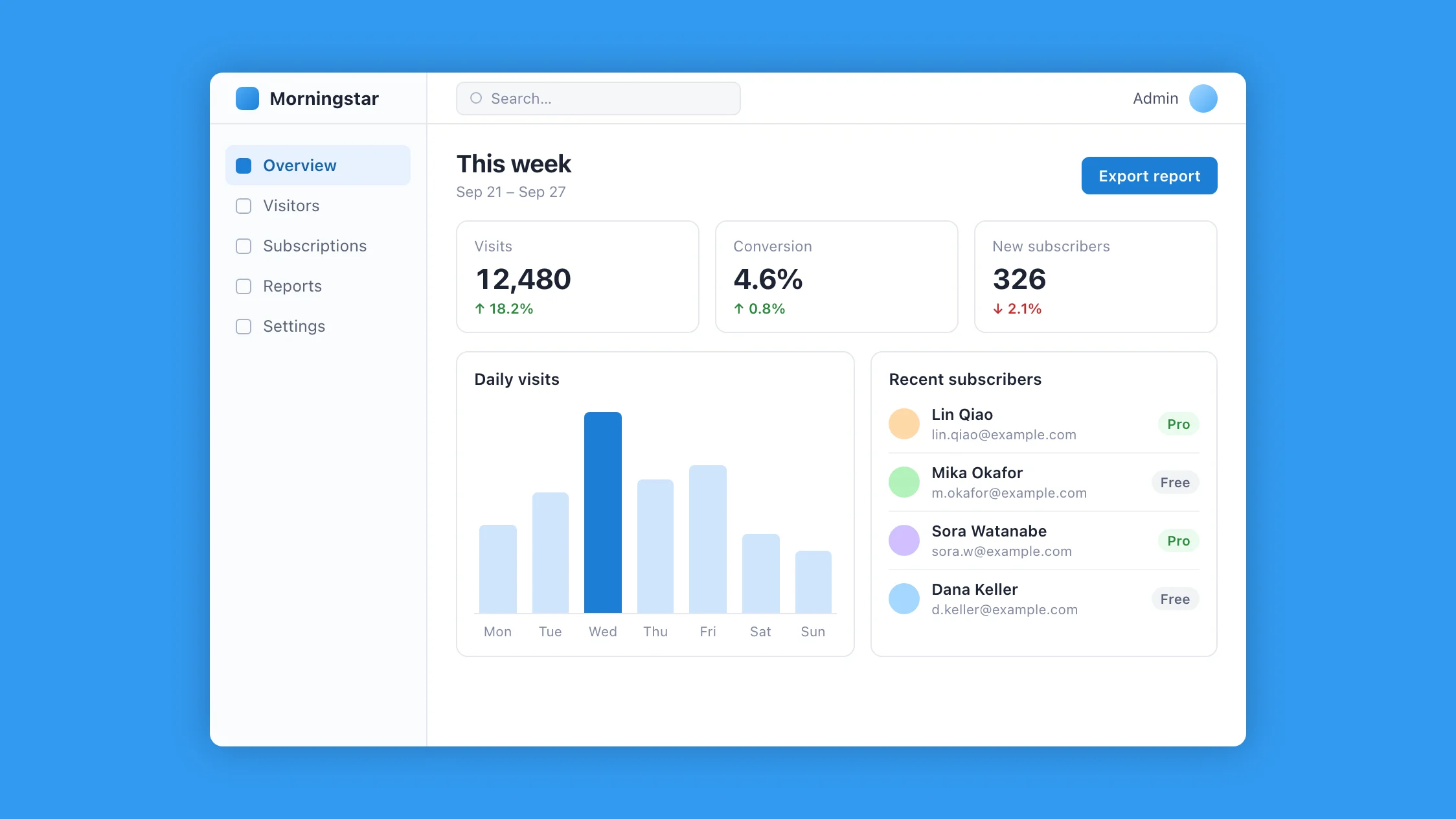
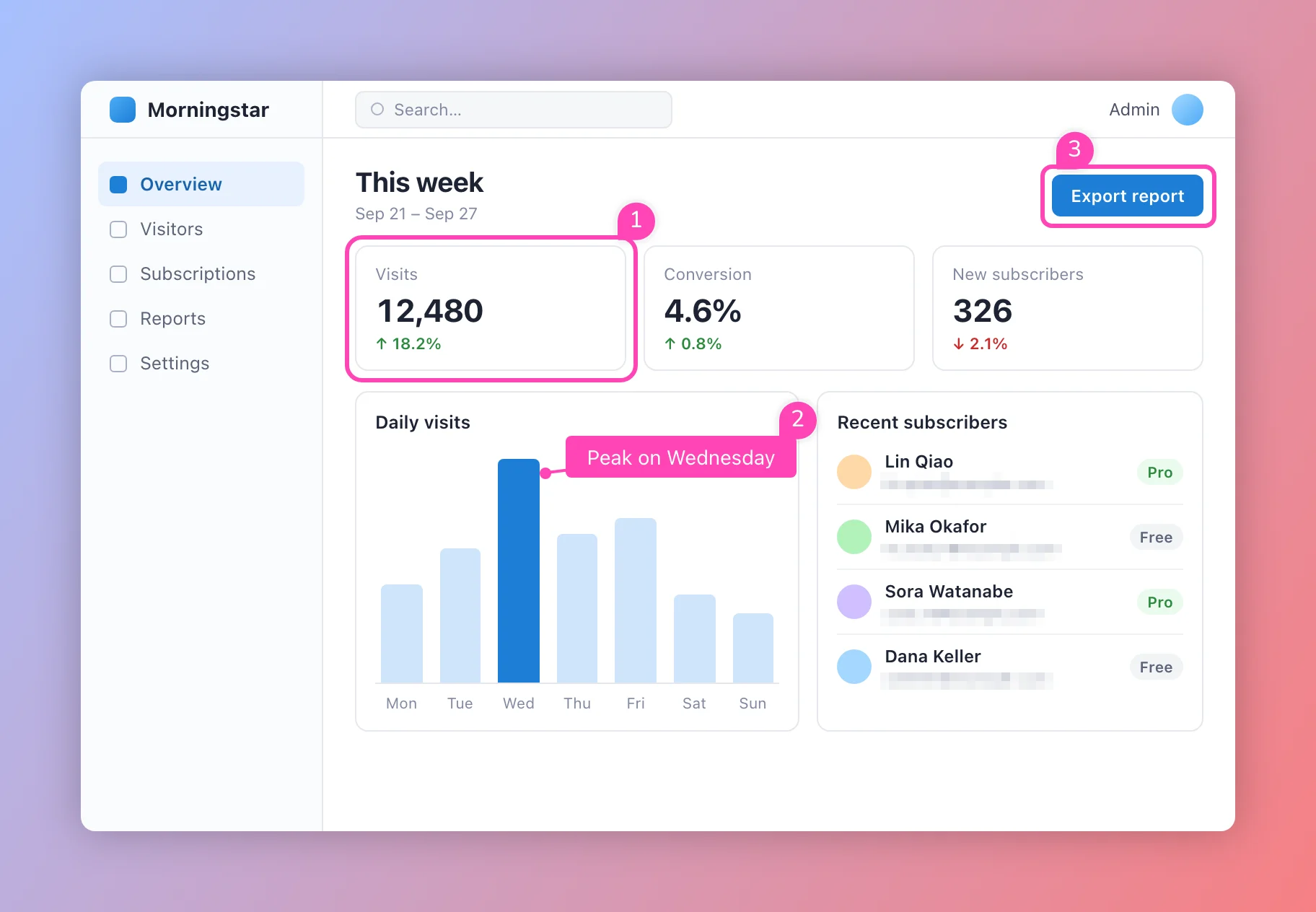
Put a gradient, wallpaper or solid color behind the capture, then tune padding, corner radius, shadow and a glass border. Pick an aspect ratio and the background fills the rest.

  • Built-in gradients and wallpapers, plus your own
  • Common ratios such as 1:1, 16:9, 4:3 and 3:2
  • Text watermark with adjustable size, opacity and angle
  • Save the whole look as a preset and reuse it in one click
A screenshot on a soft gradient background with rounded corners and a shadow

04 / Extract text

Pull the text out of the picture.

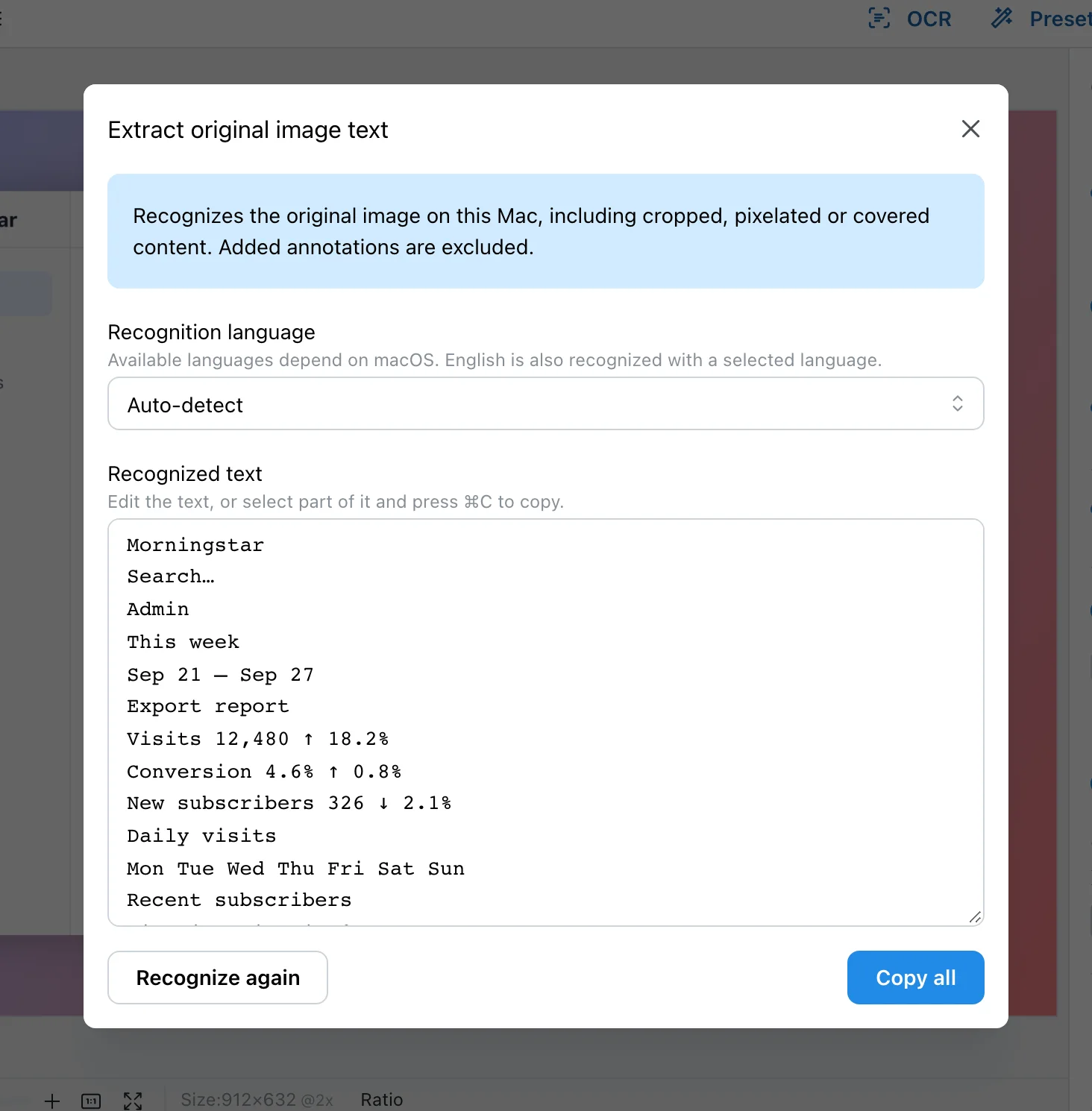
Recognize the text in a capture right on your Mac, fix it up in place, and copy what you need.

  • Runs on the text recognition built into macOS
  • Automatic language detection, or pick one yourself
  • Available languages depend on your macOS version
The text extraction dialog in the Tuji editor, showing recognized text that can be edited and copied

Also inside

The small things that add up.

Pricing

Free to start. Pro when you need more.

Pro is a one-time purchase. No subscription and no follow-up fees.

The App Store edition is upgraded with an in-app purchase. The direct-download edition is activated with a license from the official site.

FeatureFreePro
Capture and annotate
Dark theme and accent colors
Open and annotate local images
Open and annotate clipboard images
Custom backgrounds and wallpapers
Presets2Unlimited
History records3Unlimited

FAQ

Questions, answered.

What does the name “Tuji” mean?

In Chinese, Tuji (图几) can be read as “picture table”: a small table for working on images. We hope it helps you handle screenshots and the work around them.

Can I use Tuji for free?

Yes. Download it from the Mac App Store or from this site and use it for free. Most everyday features are included; a few advanced ones need a one-time upgrade to Pro.

What is the difference between the two editions?

They share the same features. The App Store edition updates through the App Store and is upgraded with an in-app purchase. The direct-download edition updates itself and is activated with a license bought on the official site.

Which systems does Tuji support?

Tuji runs on macOS 12.3 or later.

Do my screenshots leave my Mac?

No. Capturing, editing and text recognition all happen on your Mac, and your captures are stored in a local folder you choose.

How can I contact the team?

Use the Contact link at the bottom of the page, or write to tuji.app@tominlab.com. We read every message and reply as soon as we can.

Get Tuji

Your next screenshot starts here.

Mac App StoreAuto-updates · App Store account
Direct downloadLicensed on tuji.app · .dmg

macOS 12.3 or later